Playground Experiments #1: Swiping Instead of Typing on the Mac
Since I have my own blog now, I thought it’d be nice to start a new series: Playground Experiments. In it, I try out ideas that come to me while working or on the side, and write down what I discover along the way. Usually, these are small and, admittedly, pretty unnecessary apps. But that’s exactly what appeals to me right now: I can try out an idea like this in a single evening.
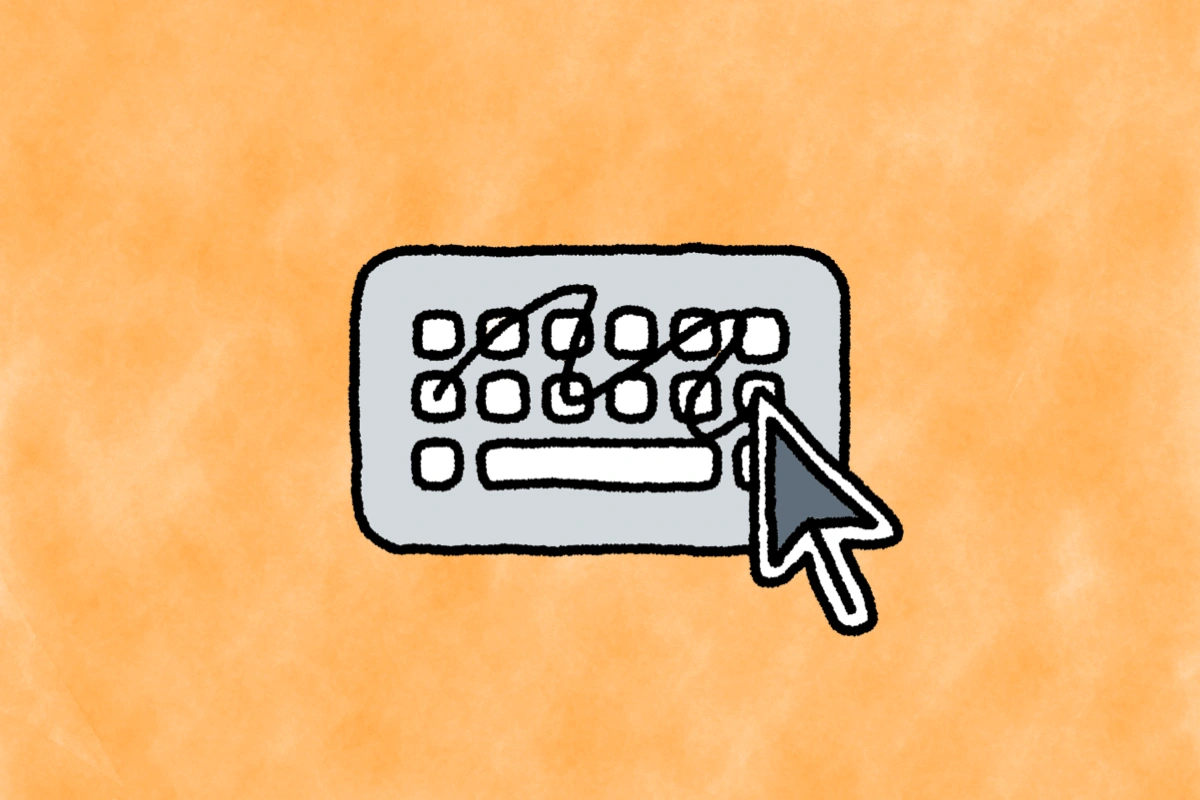
First up is a keyboard for the Mac where you swipe words instead of typing them.
When It Hit Me and a Quick Look Back
Occasionally, I like lying on the couch with my MacBook, holding it at an angle in my left hand. It’s comfortable, but typing on the real keyboard in that position is a hassle.
Sure, macOS has had a built-in on-screen keyboard for what feels like a hundred years. But there, you click every single key with the cursor. That was the last thing I wanted.
Then I remembered that smartphones have had something better for ages: you drag your finger across the letters, and a word comes out. The idea is surprisingly old. Apparently, IBM (opens in a new tab) was already working on this back in 2004. It only caught on with Swype on Android, though. On the iPhone, it arrived in 2014, mostly through SwiftKey (it felt magical and new), when Apple first allowed third-party keyboards with iOS 8. Two years later, Microsoft bought SwiftKey. Today, Google’s Gboard does it, and in 2019 Apple added it to its own keyboard with iOS 13, calling it QuickPath. I wanted to know: How well would this work on a Mac with a mouse or trackpad?
How a Curve Becomes a Word
For me, this was the most interesting part. In short: the app doesn’t store any swipe paths. All it knows is the position of each key and a list of German words.
From that, it can work out what the ideal path for any word would look like. For “Hallo,” the line goes from h to a, then to l, then to o. The double L (damn you sans-serif lowercase l and uppercase I) disappears, since you can’t swipe over the same key twice.
When I swipe, this happens in about ten milliseconds:
Filtering
Only words that start and end roughly where my path starts and ends are considered. Out of around 77,000 words, a few hundred are left (a good reminder of how fast computers actually are).
Comparing
For each of them, the app checks three things: Does my path have the same shape? Is it in the same place on the keyboard? And did I pass all the letters in the right order?
Probability
Common words get a head start, since “das” is simply more likely than “dad.” The previous word counts too: after “ich,” “habe” is more likely than “haben.” The app learned this from around 150,000 word pairs taken from German news articles.
The best match is inserted right away, with two alternatives above it to pick from.
I was surprised how well this works. Measured against my own real swipes, the right word comes first 88 percent of the time and lands among the three suggestions 99.5 percent of the time.
Part of that is learning: the app remembers which words I actually use and in what order. After a few hundred swiped words, it knows my vocabulary. The bigger gain, though, came from cleaning up the word list along the way. The original list was based on movie subtitles and full of English words like “dad” or “mom,” which kept crowding out the correct German ones.
There was one mishap with the learning. My very first swiped “hallo” was recognized as “Hanoi” twice in a row. Because the app saved every inserted word as correct right away, that only made “Hanoi” more likely. Now it only learns a word once I keep writing without correcting it.
German Has Its Own Quirks
Ä, Ö, and Ü have their own keys, just like on the iPhone, so they’re no problem. The ß, on the other hand, doesn’t have a key in the iOS layout. So when swiping, it sits on the s: if you want to write “groß,” you swipe over the s, and the app figures out from the word itself that you meant ß.
How Does the Keyboard Come Back?
The keyboard floats above all other windows. That’s handy, but sometimes it gets in the way. So you can close it like any other window with the red traffic light button.
The catch: How do you get it back without a keyboard shortcut or a click in the menu bar? The whole point is not having to touch the real keyboard.
My solution: I hold down the mouse button anywhere for a second and a half without moving it. Meanwhile, a small ring fills up next to the pointer, so I can see that something is about to happen. Then the keyboard appears right above the spot where I’m writing.
The Keyboard Follows Me
It quickly became clear that the keyboard has to be close to the text field. While swiping, I want to see out of the corner of my eye whether the right word showed up. If the keyboard sits at the other end of the screen, that connection is lost.

With several windows open, dragging it back and forth all the time got annoying. So I added a gesture: when the keyboard is open and I double-click anywhere, it glides over to that spot. It instantly reminded me of Yondu from Guardians of the Galaxy, who whistles, and his arrow follows him. That’s exactly what it feels like.
From a user interaction perspective, this isn’t clean, of course. A double-click normally selects a word, a triple-click a whole paragraph. That’s why the app clears the selection immediately, otherwise the next swiped word would replace it. And the gesture only works when the keyboard is already visible. For an experiment, that’s fine.
What Actually Excites Me About It
The interesting part isn’t the keyboard itself. It’s the questions around it. Where should the window go? How do you bring it back? What should a double-click mean? There are no established patterns for this on the Mac, nobody has defined them. Unlike the close button, which has lived in the top-left corner for decades, here you’re free to experiment.
What’s Next
A few hours of work, a rather unnecessary app, and still, I learned a lot. The keyboard has its quirks, but I really do use it on the couch. Moreover, it was fun for me to learn more and think about how a feature I use daily on my iPhone might actually work. Sure, Apple’s QuickPath is probably way more advanced, but still, for me as a rather non-technical person it was interesting to dwell on this.
The next Playground Experiment is coming soon. I’m not short on ideas.